Watching videos in the right quality can make a huge difference to your viewing experience. Whether you’re streaming tutorials, movies, music videos, or live streams, YouTube lets you adjust the video resolution based on your internet speed and personal preference.
If your videos look blurry or you’re trying to save mobile data, changing the video quality is quick and easy. In this guide, we’ll show you how to change YouTube video quality on Android, iPhone, and desktop devices.
Why Should You Change YouTube Video Quality?
YouTube automatically selects the video quality depending on your internet connection. While this helps reduce buffering, it doesn’t always choose the highest resolution.
Changing the quality manually can help you:
- Watch videos in Full HD or 4K for better clarity.
- Reduce buffering on slow internet connections.
- Save mobile data while streaming.
- Improve battery life by using lower resolutions.
- Enjoy a smoother viewing experience.
How to Change YouTube Video Quality on Android
If you’re using the YouTube app on an Android phone:
- Open the YouTube app.
- Play the video you want to watch.
- Tap anywhere on the video.
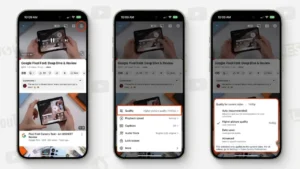
- Tap the Settings (gear) icon in the top-right corner.
- Select Quality.
- Choose one of the available options:
- Auto
- Higher Picture Quality
- Data Saver
- Advanced
- If you choose Advanced, you can manually select resolutions like 144p, 360p, 720p, 1080p, or higher if available.
The video quality changes instantly without restarting playback.
How to Change YouTube Video Quality on iPhone
The process is almost identical on iOS.
- Open the YouTube app.
- Start playing any video.
- Tap the video once.
- Tap the Settings icon.
- Select Quality.
- Choose Higher Picture Quality, Data Saver, or Advanced.
- Pick your preferred resolution.
How to Change YouTube Video Quality on a Computer
If you’re watching YouTube in a web browser:
- Open YouTube.com.
- Play a video.
- Click the Settings (gear) icon at the bottom-right corner.
- Click Quality.
- Select the resolution you want.
If your monitor and internet connection support it, you may see options up to 4K (2160p) or even 8K for supported videos.
How to Set a Default Video Quality
YouTube now offers playback preferences instead of permanently locking a resolution.
Inside the YouTube app:
- Open Settings.
- Go to Video Quality Preferences.
- Set separate preferences for:
- Mobile networks
- Wi-Fi
You can choose between:
- Auto
- Higher Picture Quality
- Data Saver
This allows YouTube to automatically follow your preferred quality based on your connection.
What Do Different Video Resolutions Mean?
Here’s a quick comparison of common YouTube video qualities:
| Resolution | Best For |
|---|---|
| 144p | Very slow internet |
| 240p | Basic viewing |
| 360p | Saves mobile data |
| 480p | Standard Definition |
| 720p | HD videos |
| 1080p | Full HD viewing |
| 1440p | Quad HD |
| 2160p | 4K Ultra HD |
Keep in mind that not every video is uploaded in all resolutions.
Why Can’t I Select Higher Quality?
If you don’t see options like 1080p or 4K, there could be several reasons:
- The uploader didn’t upload the video in higher resolution.
- Your internet connection is slow.
- Your device doesn’t support higher playback quality.
- The video is still processing after being uploaded.
In most cases, waiting a little or switching to a faster internet connection solves the issue.
Tips for Better YouTube Streaming
To enjoy smoother playback and higher-quality videos:
- Connect to a stable Wi-Fi network whenever possible.
- Keep the YouTube app updated.
- Close unused background apps.
- Use higher resolutions only when your internet speed supports them.
- Download videos for offline viewing if you’re traveling.
Final Thoughts
Changing YouTube video quality is one of the easiest ways to improve your viewing experience. Whether you want crystal-clear Full HD videos or simply want to save mobile data, YouTube gives you full control over playback quality across Android, iPhone, and desktop devices.
If your videos often appear blurry, checking the quality settings should be one of the first things you do. With just a few taps, you can enjoy videos exactly the way you want.