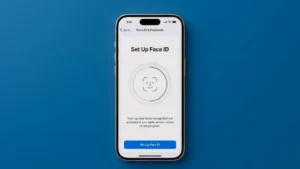
Face ID is one of the easiest ways to secure an iPhone 16 while making everyday tasks faster. Once it is set up, you can unlock your iPhone, approve App Store purchases, use Apple Pay, sign in to supported apps, and autofill saved passwords just by looking at your phone.
If you skipped Face ID during the initial iPhone setup, you can enable it later from the Settings app. The entire process only takes a few minutes.
What You Need Before Setting Up Face ID
Before you begin, make sure your iPhone 16 has a passcode enabled. Apple requires a passcode as a backup security method when Face ID cannot be used.
It is also a good idea to clean the area around the front camera and make sure your face is clearly visible during the setup process.
How to Set Up Face ID on iPhone 16
Follow these steps to enable Face ID on your iPhone 16:
1. Open Settings
Start by opening the Settings app on your iPhone 16.
2. Tap Face ID & Passcode
Scroll through the Settings menu and tap Face ID & Passcode.
Your iPhone may ask you to enter your current passcode before allowing you to change Face ID settings.
3. Select Set Up Face ID
Tap Set Up Face ID to begin the facial recognition setup.
If you haven’t created a passcode yet, your iPhone will ask you to create one first.
4. Tap Get Started
Hold your iPhone 16 in portrait orientation and position your face in front of the phone.
When the Face ID setup screen appears, tap Get Started.
5. Position Your Face Inside the Frame
You will see a circular frame on the screen. Keep your face inside this frame and slowly move your head in a circle.
The phone will scan different parts of your face as you move.
Try to keep your face at a comfortable distance from the iPhone. Apple says Face ID works best when the device is approximately 25–50 cm away from your face.
6. Complete the First Scan
Continue moving your head slowly until the circle is completed.
Once the first scan is finished, tap Continue.
7. Complete the Second Scan
Move your head around the circle again to complete the second Face ID scan.
Apple uses two scans during the setup process to create your Face ID profile.
8. Tap Done
After the second scan is complete, tap Done.
Face ID is now set up on your iPhone 16.
Choose What You Want to Use Face ID For
Setting up Face ID doesn’t mean you have to use it for everything.
Go to:
Settings → Face ID & Passcode
Under Use Face ID For, you can choose which features should use Face ID.
Depending on your iPhone and settings, these can include:
- iPhone Unlock
- iTunes & App Store
- Wallet & Apple Pay
- Password AutoFill
- Supported apps
You can turn individual options on or off whenever you want.
Can You Use Face ID With Apps?
Yes. Many apps can use Face ID for authentication.
To check which apps have permission to use Face ID, go to:
Settings → Face ID & Passcode → Other Apps
If an app supports Face ID but doesn’t immediately ask you to use it, you may need to sign in manually once before Face ID becomes available.
Face ID can also be used with password autofill in Safari when Password AutoFill is enabled.
How to Add an Alternate Face ID Appearance
If your appearance changes significantly depending on how you normally look—for example, because you regularly wear glasses—you can add an alternate appearance.
Go to:
Settings → Face ID & Passcode → Set Up an Alternate Appearance
Then follow the same scanning process.
Apple provides this option for adding another appearance that Face ID can recognize.
What If Face ID Is Not Working Properly?
If Face ID doesn’t recognize you consistently after setup, try a few simple things first.
Make sure the front camera area isn’t blocked and that your face is clearly visible. Also, keep the iPhone at a comfortable distance and look directly toward it.
If the problem continues, you can reset Face ID and set it up again by going to:
Settings → Face ID & Passcode → Reset Face ID
You can then repeat the setup process from the beginning.
Is Face ID Secure?
Face ID is designed to provide biometric authentication for supported iPhone features. Apple says Face ID data is encrypted, isn’t saved to iCloud, and doesn’t leave your iPhone.
Your passcode still remains important because it can be required in situations where Face ID isn’t available.
Final Thoughts
Setting up Face ID on the iPhone 16 is a quick process and is worth doing if you want a faster way to unlock your phone and authenticate supported features.
All you need to do is open Settings → Face ID & Passcode → Set Up Face ID, complete the two facial scans, and tap Done. After that, you can choose which iPhone features and apps should use Face ID.
If you skipped Face ID when setting up your iPhone 16 for the first time, you can enable it anytime using the same steps.