WhatsApp is one of the most popular messaging apps in the world, making it easy to share photos with friends, family, and colleagues. However, many users notice that the images they send appear blurry or lose detail after being shared. This happens because WhatsApp compresses photos by default to reduce file size and speed up uploads.
The good news is that you don’t have to settle for lower-quality images anymore. WhatsApp now offers built-in options that let you send photos in much better quality. In this guide, we’ll show you the best ways to upload high-quality photos on WhatsApp without sacrificing image clarity.
Why Do Photos Lose Quality on WhatsApp?
Whenever you send a photo through WhatsApp, the app automatically compresses the image to save bandwidth and storage. While this makes sharing faster, it also reduces the image’s resolution and sharpness.
If you’re sending travel photos, professional images, documents, or memories that you want to preserve, it’s better to use WhatsApp’s high-quality sharing options.
Method 1: Send Photos in HD Quality
The easiest way to improve photo quality is by using WhatsApp’s built-in HD feature.
Steps to Send HD Photos
- Open WhatsApp and select the chat.
- Tap the Attachment icon and choose Gallery.
- Select the photo you want to send.
- Tap the HD button at the top of the screen.
- Choose HD Quality.
- Tap Send.
This option preserves much more detail compared to the standard compressed version while keeping the file size reasonable.
Method 2: Send Photos as Documents
If you want to keep the original image quality without any compression, sending the photo as a document is the best option.
How to Send Photos as Documents
- Open the chat.
- Tap the Attachment icon.
- Select Document.
- Choose the photo from your device.
- Send it.
Since the file is shared as a document instead of an image, WhatsApp doesn’t compress it. This method is ideal for photographers, designers, or anyone sharing important images.
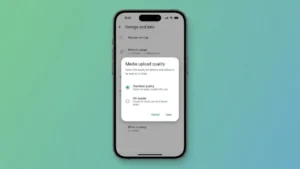
Method 3: Change Default Media Upload Quality
WhatsApp also allows you to choose the default quality for every photo you upload.
Here’s How
- Open WhatsApp.
- Go to Settings.
- Tap Storage and Data.
- Select Media Upload Quality.
- Choose HD Quality instead of Standard.
From now on, your photos will automatically be uploaded in better quality whenever possible.
When Should You Use HD Quality?
HD Quality is perfect for:
- Vacation and travel photos
- Family pictures
- Social media content
- Product images
- Important memories
It offers a great balance between image quality and upload speed.
When Should You Send Photos as Documents?
Sending photos as documents is the better option when:
- You need the original resolution.
- You’re sharing professional photography.
- You’re sending scanned documents.
- You don’t want any compression.
- The image will be edited later.
Things to Keep in Mind
Before sending high-quality photos, remember these points:
- HD photos take slightly longer to upload.
- Original-quality documents use more mobile data.
- The recipient should update WhatsApp to enjoy the latest HD sharing features.
- Large files may take more time depending on your internet speed.
Tips for the Best Photo Quality
Here are a few simple tips to make sure your photos look their best:
- Capture images using your phone’s highest camera resolution.
- Avoid repeatedly editing and re-saving the same image.
- Use Wi-Fi when uploading large photos.
- Send important images as documents whenever possible.
- Keep WhatsApp updated to access the latest quality improvements.
Final Thoughts
WhatsApp has made sharing high-quality photos much easier than before. Whether you use the built-in HD option or send images as documents, you can now preserve far more detail than the standard compressed version.
If image quality matters to you, these simple settings can make a noticeable difference. The next time you share your favorite memories, professional work, or important documents, use these methods to ensure your photos look as clear and sharp as possible.