There’s usually a moment that leads someone here. Maybe you started a channel years ago, uploaded three videos, and never touched it again. Maybe you’re rebranding and want a clean slate. Or maybe you just don’t want that old channel sitting out there anymore, attached to your name, collecting dust and the occasional weird comment.
Whatever brought you to this point, deleting a YouTube channel is pretty simple once you know where the buttons are. But it’s also one of those things where a little caution goes a long way, because depending on how your channel is set up, “delete channel” doesn’t always mean what you think it means. So let’s go through it properly.
First, Figure Out What Kind of Channel You Have
This part actually matters more than most guides let on. YouTube channels come in two basic flavors: ones tied directly to your personal Google Account, and ones created under a Brand Account (which usually happens automatically if you gave your channel its own name instead of using your real name).
If your channel shares your Google Account, deleting it can affect other Google services too, not in a “your Gmail disappears” way, but it’s still worth knowing before you go clicking delete on autopilot. If it’s a Brand Account, deleting the channel is more contained and only really affects the channel itself. You can check which one you’re dealing with in your channel settings, and honestly, it’s worth those thirty seconds before moving forward.
Before You Delete Anything
A few things worth sorting out first, mostly so you don’t regret it later:
Download any videos you actually want to keep. Once you delete, they’re not coming back.
Check if your channel is monetized. If it is, you’ll want to make sure any pending payments have been settled, because deleting the channel can affect that.
Think about whether you want to hide the channel instead of permanently deleting it. YouTube actually gives you this option, and it’s reversible, unlike full deletion.
If you’re not 100% sure, hiding first is honestly the smarter move for most people. You can always come back and delete for real later. There’s no rush.
How to Delete Your YouTube Channel
Here’s the actual process, step by step.
Step 1
Sign in to YouTube on a computer (this isn’t something you can fully do from the mobile app).
Step 2
Click your profile picture in the top right corner.
Step 3
Go to Settings.
Step 4
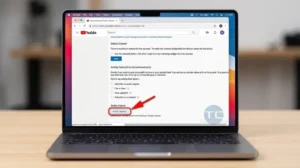
Click “Advanced settings” near the bottom of the page.
Step 5
Scroll down to find the option that says “Remove YouTube Content” or “Delete Channel,” depending on how your account is set up.
Step 6
YouTube will ask you to confirm your channel and give you the choice between hiding your channel or permanently deleting your content.
Step 7
Choose “I want to permanently delete my content” if that’s really what you want.
Step 8
Follow the confirmation steps, YouTube usually asks you to verify by signing in again or entering a code sent to your account.
Once you confirm, that’s it. Your videos, comments, playlists, and subscriber count are gone, and there’s no walking it back.
What Actually Happens When You Delete It
Your videos disappear immediately, though sometimes it takes a short while for everything to fully clear out of YouTube’s system on the backend. Your comments on other people’s videos usually get removed too, along with playlists you created. Subscribers you had lose access to your channel entirely, and if anyone had your channel bookmarked or linked somewhere, they’ll just hit a dead page.
If your channel was tied to a Brand Account, your actual Google Account stays completely fine, Gmail, Drive, Photos, all of it keeps working exactly as before. It’s really just the channel that goes away.
What If You Just Want to Start Fresh, Not Delete Everything?
A lot of people come into this wanting a clean slate, not necessarily full deletion. If that’s you, there are a couple of lighter options worth considering first.
You can hide your channel instead, which keeps everything intact behind the scenes but makes it invisible to everyone else. You can also just rename the channel and swap out the profile picture and banner, essentially giving it a new identity without starting from zero. Both of these let you keep your subscriber count and video history if you ever want it back, which full deletion doesn’t allow.
How to Hide Your Channel Instead of Deleting It
If you decide hiding makes more sense:
Go to YouTube Studio.
Click Settings, then Channel.
Select “Advanced settings.”
Choose “Hide my YouTube channel.”
Confirm the action.
Your channel goes dark to the public, but everything stays saved on YouTube’s end. You can reverse this anytime by going back into the same settings.
Common Issues People Run Into
Every so often, this doesn’t go as smoothly as expected. Sometimes the delete option is missing entirely, which usually points to unresolved monetization or a channel still tied to active AdSense payments. Other times, people accidentally delete the wrong channel because they were signed into a different Brand Account than they thought, which is an easy mistake if you manage more than one channel.
If the deletion doesn’t seem to be taking effect, or your channel still shows up after a day or two, it’s worth checking that you actually completed every confirmation step, sometimes people miss the final verification and assume it went through when it didn’t.
A Quick Word of Caution
YouTube doesn’t really offer a grace period once you fully delete a channel; it’s not like an email you can pull out of the trash folder a week later. If there’s even a small chance you might want the channel back someday, hiding it is the safer bet. Full deletion is really meant for people who are completely sure they’re done with it.
Final Thoughts
Deleting a YouTube channel isn’t complicated, but it’s permanent in a way that’s easy to underestimate until it’s already done. If you’re certain, the process takes just a few minutes and everything’s gone cleanly. If you’re even a little unsure, hiding your channel first costs you nothing and keeps the door open.
Either way, it’s your channel and your call. Just make the choice knowing exactly what you’re giving up, and you’ll be fine either way.