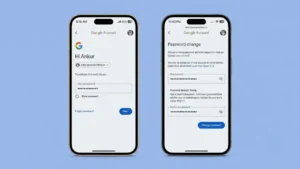
Your Google Account is connected to many important services, including Gmail, Google Drive, Google Photos, YouTube, Google Pay, and Android devices. If someone gains access to your account, they could view your emails, personal files, contacts, and even payment information.
That’s why changing your Google Account password regularly is one of the simplest and most effective ways to keep your account secure. Whether you suspect suspicious activity or simply want a stronger password, this guide will walk you through the entire process.
Why Should You Change Your Google Account Password?
There are several reasons why updating your password is a smart decision.
You should consider changing your password if:
- You received a suspicious login alert.
- Your password is old or weak.
- You shared your password with someone.
- Your account was part of a data breach.
- You logged into your account on a public computer.
- You simply want better account security.
Changing your password immediately prevents unauthorized users from accessing your account.
Before You Begin
Make sure you have:
- Access to your Google Account.
- Your current password (if available).
- A recovery phone number or email in case you forgot your password.
- A stable internet connection.
How to Change Your Google Password on Android
If you’re using an Android phone, follow these steps:
Step 1
Open the Settings app on your phone.
Step 2
Tap Google.
Step 3
Select Manage your Google Account.
Step 4
Go to the Security tab.
Step 5
Scroll down until you find Password.
Step 6
Verify your identity by entering your current password.
Step 7
Enter your new password.
Step 8
Confirm the password and tap Change Password.
Your Google password will now be updated across all Google services.
How to Change Your Google Password on iPhone
If you use an iPhone or iPad:
- Open the Gmail app or any Google app.
- Tap your profile picture.
- Select Manage your Google Account.
- Open the Security section.
- Tap Password.
- Verify your identity.
- Enter a new password.
- Save the changes.
How to Change Your Google Password on a Computer
Changing your password from a PC or laptop is equally simple.
Step 1
Open your browser and visit your Google Account settings.
Step 2
Sign in to your Google Account.
Step 3
Click Security from the left menu.
Step 4
Under How you sign in to Google, click Password.
Step 5
Enter your current password.
Step 6
Create a strong new password.
Step 7
Click Change Password.
Your new password will become active immediately.
What Makes a Strong Google Password?
A secure password should be difficult to guess while remaining easy for you to remember.
A strong password should include:
- At least 12 characters
- Uppercase letters
- Lowercase letters
- Numbers
- Special symbols
Avoid using:
- Your name
- Date of birth
- Phone number
- Simple words like “password123”
- Reusing passwords from other websites
Forgot Your Google Password?
If you can’t remember your current password, don’t worry.
Simply choose the Forgot Password option on the Google sign-in page.
Google may ask you to verify your identity using:
- Recovery email
- Recovery phone number
- Previously used password
- Trusted device
- Verification code
Once your identity is confirmed, you’ll be able to create a new password.
What Happens After Changing Your Password?
After updating your password:
- You’ll be signed out from most devices.
- You’ll need to sign in again using your new password.
- Gmail, YouTube, Google Drive, Google Photos, and other Google apps will require the new password.
- Devices you trust may remain signed in depending on your security settings.
Additional Ways to Protect Your Google Account
Changing your password is only one part of account security.
For even better protection, enable these security features:
Turn On Two-Step Verification
Two-factor authentication adds an extra layer of security by requiring a verification code during login.
Review Connected Devices
Check which devices are currently signed in to your account and remove any you don’t recognize.
Update Recovery Information
Keep your recovery phone number and email address updated so you can regain access if needed.
Monitor Security Activity
Google’s Security Checkup helps you review recent logins, connected apps, and suspicious activity.
Common Problems While Changing Password
Some users may encounter issues during the process.
Possible reasons include:
- Incorrect current password
- Poor internet connection
- Temporary Google server issues
- Forgotten recovery information
If problems continue, wait a few minutes and try again or use Google’s account recovery process.
Tips for Better Account Security
Follow these best practices to keep your Google Account safe:
- Change your password every few months.
- Never share your password.
- Use a password manager.
- Avoid logging in on unknown devices.
- Enable two-factor authentication.
- Ignore phishing emails requesting your password.
Final Thoughts
Your Google Account contains some of your most valuable personal information, making its security extremely important. Regularly updating your password, enabling two-step verification, and reviewing your account activity can greatly reduce the risk of unauthorized access.
Whether you’re changing your password as a precaution or because you suspect suspicious activity, following the steps in this guide will help keep your Google Account secure and protected. A few minutes spent improving your account security today can save you from much bigger problems in the future.